Showing posts with label dvd. Show all posts

Friday, September 7, 2012

Building cdrkit for Windows

K3b_Oxygen_800px.pngcdrkit is another CD/DVD burning tool that was spun off from the cdrtools project. Some say cdrkit is inferior to cdrtools, but I haven't found a problem with cdrkit yet. Although I prefer cdrtools to cdrkit, I'd like to give cdrkit a try. To build cdrkit with MinGW, I had to compile some libraries first.


  1. zlib

    First, I compiled zlib:


    tar xzvf zlib-1.2.7.tar.gz
    cd zlib-1.2.7
    make -f win32/Makefile.gcc
    cp -iv zlib1.dll /mingw/bin
    cp -iv zconf.h zlib.h /mingw/include
    cp -iv libz.a /mingw/lib
    cp -iv libz.dll.a /mingw/lib


  2. POSIX threads for Win32

    New genisoimage seems to use pthread for making checksums. I compiled pthread like this:


    make clean GC
    cp -iv pthreadGC2.dll /mingw/bin
    cp -iv pthread.h semaphore.h sched.h /mingw/include/
    cp -iv libpthreadGC2.a /mingw/lib
    cp -iv libpthreadGC2.a /mingw/lib/libpthread.a


  3. PCRE

    Then, I compile PCRE:


    ./configure --prefix=/mingw --enable-pcre16 --enable-unicode-properties
    make
    make install
    cp /mingw/include/pcreposix.h /mingw/include/regex.h
    cp /mingw/lib/libpcreposix.a /mingw/lib/libregex.a
    cp /mingw/lib/libpcreposix.dll.a /mingw/lib/libregex.dll.a


  4. libmagic

    I built the open-source file command. I configured it like this:


    ./configure --prefix=/mingw


    Then, I added the following lines to config.h:


    #define WIN32 1
    #define MAGIC "magic"


    Compile libmagic:


    make && make install


    I got an error trying to build file.exe, so I modified src/Makefile:


    file_LDADD = libmagic.la /mingw/lib/libpcreposix.dll.a


  5. libiconv

    I built libiconv like this:


    ./configure --prefix=/mingw
    make
    make install


  6. CMake

    Then, I built CMake.


    ./bootstrap --prefix=/mingw
    make
    make install


  7. cdrkit

    I unpacked the cdrkit source and applied the patch that I found at the mailing list. Here are the modified patches of mine.


    I used the command below to applied the patch.


    patch -p1 -l < ../cdrkit-1.1.9-mingw.patch


    Then, I compiled cdrkit:


    cmake -G "MSYS Makefiles"
    make

    After successful build, I copied the executable files (*.exe) to my folder.


Issues and Fixes


  1. I got an error linking genisoimage. I edited genisoimage/CMakeLists.txt to resolve the issue:


    IF(USE_MAGIC)
    ADD_DEFINITIONS(-DUSE_MAGIC)
    LIST(APPEND EXTRA_LIBS "shlwapi")
    SET(MAGICLIBS magic)
    ENDIF(USE_MAGIC)


  2. I got errors compiling sha256.* and sha512.*. I made the following changes.


    • I removed all lines that read #include <endian.h>.
    • Assume the target machine is little endian.
    • change all occurrences of __THROW to __attribute__ ((__nothrow__)).


  3. The code in genisoimage/checksum.c gave me errors linking with pthread-w32. To fix it, I replaced a->thread with (a->thread).p.


  4. I found that genisoimage and readom still used /dev/null. I changed it to NUL in genisoimage.c and readom.c.


Download my cdrkit Build


Here's my cdrkit build for Windows.


Related Links


Thursday, September 6, 2012

Building cdrtools under Cygwin


cdrtools is a powerful open-source CD/DVD/BD burning tool. It is used as backend software for free DVD-burning applications, such as Infrarecorder and cdrtfe. To build cdrtools for Windows, install Cygwin as shown in this post. Additionally, I installed the following Cygwin packages.


  • bison
  • gcc4-core
  • gcc4-g++
  • gettext-devel
  • libiconv
  • libtool
  • make
  • patch
  • pkg-config


I set up some environment variables before I started.


export CC=/usr/bin/gcc.exe
export CC_OPT="-O2"
export CFLAGS="-march=pentium2 -mtune=i586 -mthreads -mms-bitfields"
export LDFLAGS="-L/usr/lib -Wl,--enable-auto-image-base -Wl,--enable-auto-import -Wl,--enable-runtime-pseudo-reloc"


Then, I built smake.


cd smake-1.2
make
make INS_BASE=/usr install


Then, I built cdrtools.


smake
smake INS_BASE=/usr install


Using cdrtools


I tested my cdrtools build. To create an ISO file from a folder, I ran mkisofs:


mkisofs -J -R -hide-rr-moved ~/Downloads > dl.iso

To burn an ISO:


cdrecord -scanbus
cdrecord dev=0,0,0 speed=8 driveropts=burnfree dl.iso

To make a copy of a data CD:


readcd dev=0,0,0 f=dl2.iso speed=8 retries=16 -nocorr -noerror

To scan a music CD, I ran cdda2wav:


cdda2wav -scanbus
cdda2wav dev=0,0,0 cddb=1 -cddbp-server=freedb.freedb.org -cddbp-port=8880 -J -N

To rip the second track of the music CD:


cdda2wav dev=0,0,0 cddb=1 track=2 ~/Music/track2.wav


Download my cdrtools build for Windows


Here you can get my cdrtools build.


Free cdrtools Graphical Interfaces for Windows


If you don't want to deal with the command line, there are, of course, user-friendly GUI frontends for cdrtools.


Related Links


Wednesday, May 5, 2010

Using VLC to Dump a DVD title

VLC is a free, powerful media player for Windows, Mac and Linux. I've used VLC mainly for playing Movies. Sometimes, I use VLC to listen to Internet radio. I seldom use VLC to rip DVD's but VLC can come in handy when dealing with tricky DVD titles. For DVD titles with mixed VOB ID's, VLC can be used to dump such DVD titles. Follow the steps below:


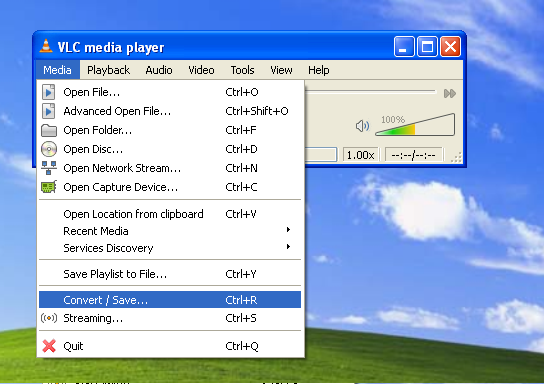
  1. From the Media menu of VLC, select Convert/Save...

    VLC Media Convert
  2. Choose the Disc tab. In the Disc Selection area, choose DVD and check No DVD menus. Type in the drive letter (for example, F:\) for your DVD drive. The main title number is typically 1, but may vary. Audio track is usually 0 for the primary language (English) and 1 for secondary lanuage (French or Spanish). Click Convert/Save button.


  3. In the next Convert window, click the Create a new profile button.


  4. Name the new profile as Copy Without Conversion. In the Video codec tab, check both options Video and Keep original video track.


    In the Audio codec tab, check both options Audio and Keep original audio track.


    Leave anything else as is. Click Save.


  5. Back to the Convert window, type in the name for Destination file (E:\output.ts). For the profile, select the newly created profile (Copy Without Conversion) from the dropdown list. Click Start.


  6. VLC starts saving the DVD title to a disk file.


Although VLC has many built-in functions for ripping DVD's and converting movies, I don't have much experience with them. I think VLC's transcoding function is premature.


After VLC finishes conversion, you'll get an output file (output.ts) whose size may be up to several gigabytes. Now, use mencoder to transcode it.


Related Links


Wednesday, April 21, 2010

Using IFOEdit To Dump a DVD Stream

I was using MPlayer to rip a DVD, but had a trouble dumping the third DVD title that was stored in the same VOB stream as the second DVD title. Running mplayer dvd://2 -dvd-device E:\ -vf cropdetect -identify showed the following output:


Playing dvd://2.
ID_DVD_TITLES=3
ID_DVD_TITLE_1_CHAPTERS=2
ID_DVD_TITLE_1_ANGLES=1
ID_DVD_TITLE_2_CHAPTERS=6
ID_DVD_TITLE_2_ANGLES=1
ID_DVD_TITLE_3_CHAPTERS=6
ID_DVD_TITLE_3_ANGLES=1
ID_DVD_TITLE_1_LENGTH=0.800
ID_DVD_TITLE_2_LENGTH=3196.467
ID_DVD_TITLE_3_LENGTH=3167.333


As can be seen, the longest titles are the main titles. I could dump the second DVD title with the following command:


mplayer dvd://2 -dvd-device E:\ -v -dumpstream -dumpfile title2.vob


But running mplayer dvd://3 -dvd-device E:\ -v -dumpstream -dumpfile title3.vob or mplayer dvd://3 -dvd-device E:\ crashed mplayer with the following error:


DVD Seek! lba=0xFFF08207 cell=0 packs: 0x108207-0x11AFA8

stream_seek: WARNING! Can't seek to 0xFFFFFFFF84103800 !

Core dumped ;)


I supposed this error is due to DVD copy protection. In this case, the DVD had two episodes of a show, but the episodes were stored in the same set of *.VOB files, specifically:


VTS_01_0.IFO
VTS_01_0.VOB
VTS_01_1.VOB
VTS_01_2.VOB
VTS_01_3.VOB
VTS_01_4.VOB
VTS_01_5.VOB


The first episode was in VTS_01_1.VOB, VTS_01_2.VOB and the beginning part of VTS_01_3.VOB whereas the second episode was in the latter part of VTS_01_3.VOB, VTS_01_4.VOB and VTS_01_5.VOB. I tried mplayer but couldn't extract the DVD title I wanted.


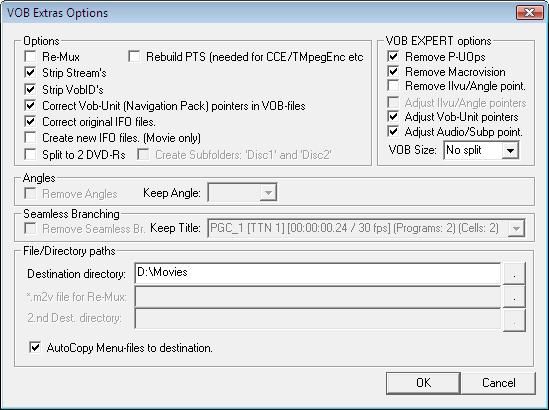
So I started IfoEdit which is useful for DVD authoring and fixing. I opened VTS_01_0.IFO in IfoEdit and clicked the VOB Extras button at the bottom of IfoEdit window. Specify the destination directory and click OK.


VOB Extras Options

In the next dialogs, choose the Audio track and the video stream you want to include in the output.

Sunday, August 16, 2009

Mplayer & Mencoder: Extracting AC3 audio from DVD

Extracting AC3 audio from a DVD is a smart thing to do when ripping DVD's. First of all, it separates the audio part of the task and lets the user focus on the video encoding part. Secondly, it helps the user to make decision about the bitrate of the video depending on the size of output files. Here's my mencoder command to extract AC3 data from a DVD.


mencoder.exe dvd://1 -dvd-device D: -aid 128 -ss 4 -o war.ac3 -of rawaudio -oac copy -ovc frameno

Alternatively, I can use MPlayer to achieve the same thing.


mplayer movie.vob -aid 128 -dumpaudio -dumpfile audio-en-51.ac3

mplayer movie.vob -aid 129 -dumpaudio -dumpfile audio-fr-51.ac3

Oddly, the output file war.ac3 plays fine with MPlayer, but can't be played with VLC player. Is it because VLC player is inferior to MPlayer?


When Mencoder finished ripping DVD audio, it displayed the following:


Recommended video bitrate for 650MB CD: 434

Recommended video bitrate for 700MB CD: 502

Recommended video bitrate for 800MB CD: 637

Recommended video bitrate for 2 x 650MB CD: 1316

Recommended video bitrate for 2 x 700MB CD: 1451

Recommended video bitrate for 2 x 800MB CD: 1723


Video stream: 0.767 kbit/s (95 B/s) size: 593132 bytes 6183.043 secs 148295 frames


Audio stream: 448.000 kbit/s (55999 B/s) size: 345966435 bytes 6177.972 secs

This information is helpful in deciding the bitrate of the video.


Extracting Video from DVD


To extract only video from a DVD, I used the following command:


mencoder dvd://1 -dvd-device D: -o war.264 -of rawvideo -vf filmdint -ofps 24000/1001 -nosound -ovc x264 -x264encopts bitrate=720:vbv_maxrate=1000:vbv_bufsize=2000:direct_pred=auto:8x8dct:me=umh:trellis=1:pass=1:turbo=2 -ss 4

About This Blog

KBlog logo This blog seeks to provide a collection of interesting pictures found on the Web. Thanks for visiting the blog and posting your comments.

© Contents by KBlog

© Blogger template by Emporium Digital 2008

Followers

Total Pageviews

Powered By Blogger