Showing posts with label ripping. Show all posts

Wednesday, September 12, 2012

Compile libcddb for Windows

libcddb is used to query for information about audio Compact Discs that has been loaded in media players and CD rippers. Compiling libcddb is not so hard with MinGW.


  1. First, I installed MinGW. I compiled zlib and libiconv.


  2. Then, I compiled libcdio. I downloaded the latest development source from its git web server.


    ./autogen.sh
    ./configure --prefix=/mingw
    make
    make install


  3. I compiled libcddb like this:


    ./configure --prefix=/mingw
    make
    make install


Wednesday, September 5, 2012

To Compile ffmpeg with MinGW

ffmpeg is an important component of many open-source projects, such as MPlayer and VLC. I am compiling ffmpeg so that I can use it to transcode multimedia files. This guide shows how to use MinGW to compile ffmpeg either statically or dynamically. Installation of MinGW is explained in this post. The example commands below are meant to be entered into an MSYS window (not Command Prompt). I downloaded the FFmpeg source and unpacked it.


Preparing External Libraries for FFMpeg


FFMpeg can be linked with external libraries to add features to FFmpeg. I am adding most features to FFMpeg by compiling additional libraries. Most of these libraries are also covered in my posts on compiling MPlayer and Mencoder.


  1. Compression Libraries: Zlib and bzLib

    Get the zlib source (zlib127.zip), unzip and compile it:

    unzip zlib127.zip
    cd zlib-1.2.7/
    make -f win32/Makefile.gcc
    cp -iv zlib1.dll /mingw/bin
    cp -iv zconf.h zlib.h /mingw/include
    cp -iv libz.a /mingw/lib
    cp -iv libz.dll.a /mingw/lib


    Optionally, get bzip2 source from bzip.org and compile it like this:


    tar xzvf bzip2-1.0.6.tar.gz
    cd bzip2-1.0.6
    make
    cp bzlib.h /mingw/include/
    cp libbz2.a /mingw/lib


  2. libgsm

    Download gsm-1.0.13.tar.bz2, unpack and compile it as follows:

    tar xzvf gsm-1.0.13.tar.bz2
    cd gsm-1.0-pl13/
    make

    Just ignore the compile errors with fchmod and fchown when trying to build applications. Copy the header and static library to /mingw:


    mkdir /mingw/include/gsm
    cp inc/gsm.h /mingw/include/gsm
    cp lib/libgsm.a /mingw/lib


  3. LAME is an excellent MP3 encoder. LAME makes use of the nasm assembler if available. So download yasm and save it as /mingw/bin/nasm.exe. Then, download the LAME source from lame.sf.net and compile it like this.

    ./configure --prefix=/mingw --enable-expopt=full

    make

    make install


  4. OGG, Vorbis, Speex and Theora

    The source code for these libraries can be obtained from xiph.org. Compile them each like this:


    ./configure --prefix=/mingw
    make
    make install

    As for speex, use the version 1.2rc1 or later.


  5. FAAC

    FAAC is an MPEG-4 AAC audio encoder. Get the source (faac-1.28.tar.gz) and unpack the package. Then, edit Makefile.am:

    SUBDIRS = include libfaac

    Also, edit the line beginning with AC_OUTPUT in the file configure.in:

    AC_OUTPUT(libfaac/Makefile include/Makefile Makefile)

    Then, compile FAAC like this

    sh bootstrap
    ./configure --prefix=/mingw
    make
    make install


  6. XviD is a popular video encoder used to create movie files distributed in p2p networks. Xvid can use yasm assembler to build optimized binaries if found (/mingw/bin/yasm.exe). Get the XviD source from xvid.org and compile as follows:

    tar xzvf xvidcore-1.3.2.tar.gz
    cd xvidcore/build/generic
    ./configure --prefix=/mingw
    make
    make install


    If you encounter "unrecognized command-line option -mno-cygwin" errors, open the file platform.inc in a text editor and delete "-mno-cygwin". Then, run make and make install again.


    Copy the import library for xvidcore.dll:


    cp -iv \=build/xvidcore.dll.a /mingw/lib/libxvidcore.a


  7. x264 is yet another good video encoder. x264 requires YASM to build an optimized executable. So get yasm and save it as /mingw/bin/yasm.exe. Then, compile x264 like this:

    configure --prefix=/mingw --enable-win32thread --extra-cflags="-DX264_VERSION=20100422"

    make

    make install

    cp -iv x264.h x264_config.h /mingw/include

    cp -iv libx264.a /mingw/lib

    cp -iv x264.pc /mingw/lib/pkgconfig


  8. Compile librtmp as shown in this post.


Building FFMpeg Statically


You need pr.exe from MYS coreutils package (coreutils-5.97-3-msys-1.0.13-ext.tar.lzma). I configured ffmpeg with the following command:


CPPFLAGS='-DHAVE_INT32_T' ./configure --prefix=/mingw --enable-gpl --enable-nonfree --enable-postproc --enable-avfilter --enable-w32threads --enable-runtime-cpudetect --enable-memalign-hack --enable-bzlib --enable-libfaac --enable-libgsm --enable-libmp3lame --enable-libspeex --enable-libtheora --enable-libvorbis --enable-libx264 --enable-libxvid --enable-zlib --disable-debug

-DHAVE_INT32_T is used to allow static FAAC to be linked. Then, I began compilation and installation:


make
make install


Compiling FFmpeg Dynamically


Some Windows applications, such as Audacity, uses FFmpeg libraries when available. If you want to compile FFmpeg dynamically, append --enable-shared --disable-static to the ./configure command for FFmpeg.


./configure --prefix=/mingw --enable-gpl --enable-nonfree --enable-postproc --enable-avfilter --enable-w32threads --enable-runtime-cpudetect --enable-memalign-hack --enable-bzlib --enable-libfaac --enable-libgsm --enable-libmp3lame --enable-librtmp --enable-libspeex --enable-libtheora --enable-libvorbis --enable-libx264 --enable-libxvid --enable-zlib --enable-shared --disable-static --disable-debug


If you get "int32_t" error when compiling libfaac.o, open /mingw/include/faac.h and insert the following line:


#include <stdint.h>


When I built mplayer with --enable-static and --disable-ffmpeg_a options to force linking with shared ffmpeg libraries, I had to rename ffmpeg libraries so their names end in *.a.


cd /mingw/lib
cp -iv libavcodec.dll.a libavcodec.a
cp -iv libavformat.dll.a libavformat.a
cp -iv libavutil.dll.a libavutil.a
cp -iv libpostproc.dll.a libpostproc.a
cp -iv libswscale.dll.a libswscale.a

Tuesday, September 4, 2012

Using cdrtfe 1.5

cdrtfe is free CD/DVD/BD burning software for Windows. cdrtfe actually use the command-line program cdrtools as its burning engine. I have used cdrtools on Linux to create ISO images and burn or rip CD. I'd like to have cdrtools on Windows also. Fortunately, cdrtfe includes cdrtools Win32 binaries along with the nice-looking GUI application.


To install cdrtfe, I downloaded the cdrtfe zip archive (cdrtfe-1.5.zip) and unpacked the zip archive. Double-clicking on the cdrtfe file will start the cdrtfe program. (Warning: Running the Cygwin terminal and cdrtfe at the same time can cause a problem due to cygwin1.dll incompatibility, so close the Cygwin terminal before starting cdrtfe.)


So far, I have only tried ripping music CD's with cdrtfe. I will add more as I get to know more about cdrtfe.


Ripping Audio CD's


To rip a music CD, click on the DAE tab and click the Options button. Check to make sure the options are okay.


cdrtfe_dae_options_1
cdrtfe_dae_options_2

Back to the main window, click Read TOC to update the track list, check the Save tracks to folder, and click Start to begin ripping.


cdrtfe_dae

Tuesday, June 29, 2010

Dumping the Contents of a Data CD into an ISO file

ISO files are used to burn Data CD's. If you want to share software CD's with someone far away, you can dump the contents of the CD into an ISO file and then transfer the ISO file to him.


For this job, readom from the cdrkit package can do. If you use Windows, download cygwin1.dll and readom.exe, then put them in C:\Windows and start the Command Prompt. Put the Windows XP CD in your CD-ROM (Assume CD-ROM's drive letter is D:) and run the following commands:

readom dev='D:' f='/home/Public/Downloads/dumped.iso' speed=2 retries=8 -noerror -nocorr

Assuming we're using Windows Vista or Windows 7, we'll find the dumped ISO file at C:\Users\Public\Downloads\dumped.iso.


Alternatively, we can use WinImage to dump the CD contents. From the Disk menu of WinImage, make sure “use CD-ROM D:” is checked. Then, select “Create CD-ROM ISO image...” from the Disk menu. If you get an access error, close any Windows Explorer, Media Player or file manager.


We can also use CDBurnerXP, InfraRecorder or ImgBurn to dump the CD contents to an ISO file.

Sunday, May 16, 2010

Using Mencoder To Merge AVI Files

Merging 2 AVI files can be easily accomplished with mencoder. But the two AVI files must be encoded with the same video and audio codec. Assuming that you have part1.avi and part2.avi, seamlessly consecutive, the mencoder command to concatenate them is:


mencoder -ovc copy -oac copy -o whole.avi part1.avi part2.avi

Wednesday, May 5, 2010

Using VLC to Dump a DVD title

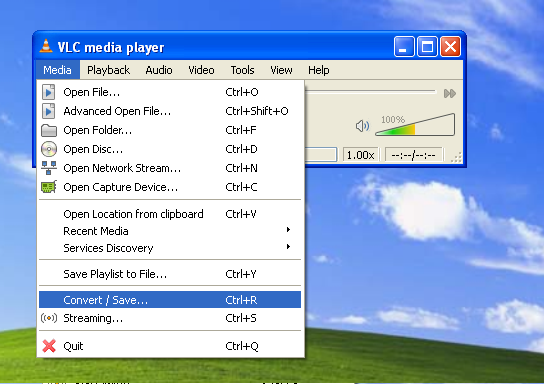
VLC is a free, powerful media player for Windows, Mac and Linux. I've used VLC mainly for playing Movies. Sometimes, I use VLC to listen to Internet radio. I seldom use VLC to rip DVD's but VLC can come in handy when dealing with tricky DVD titles. For DVD titles with mixed VOB ID's, VLC can be used to dump such DVD titles. Follow the steps below:


  1. From the Media menu of VLC, select Convert/Save...

    VLC Media Convert
  2. Choose the Disc tab. In the Disc Selection area, choose DVD and check No DVD menus. Type in the drive letter (for example, F:\) for your DVD drive. The main title number is typically 1, but may vary. Audio track is usually 0 for the primary language (English) and 1 for secondary lanuage (French or Spanish). Click Convert/Save button.


  3. In the next Convert window, click the Create a new profile button.


  4. Name the new profile as Copy Without Conversion. In the Video codec tab, check both options Video and Keep original video track.


    In the Audio codec tab, check both options Audio and Keep original audio track.


    Leave anything else as is. Click Save.


  5. Back to the Convert window, type in the name for Destination file (E:\output.ts). For the profile, select the newly created profile (Copy Without Conversion) from the dropdown list. Click Start.


  6. VLC starts saving the DVD title to a disk file.


Although VLC has many built-in functions for ripping DVD's and converting movies, I don't have much experience with them. I think VLC's transcoding function is premature.


After VLC finishes conversion, you'll get an output file (output.ts) whose size may be up to several gigabytes. Now, use mencoder to transcode it.


Related Links


Wednesday, April 21, 2010

Using IFOEdit To Dump a DVD Stream

I was using MPlayer to rip a DVD, but had a trouble dumping the third DVD title that was stored in the same VOB stream as the second DVD title. Running mplayer dvd://2 -dvd-device E:\ -vf cropdetect -identify showed the following output:


Playing dvd://2.
ID_DVD_TITLES=3
ID_DVD_TITLE_1_CHAPTERS=2
ID_DVD_TITLE_1_ANGLES=1
ID_DVD_TITLE_2_CHAPTERS=6
ID_DVD_TITLE_2_ANGLES=1
ID_DVD_TITLE_3_CHAPTERS=6
ID_DVD_TITLE_3_ANGLES=1
ID_DVD_TITLE_1_LENGTH=0.800
ID_DVD_TITLE_2_LENGTH=3196.467
ID_DVD_TITLE_3_LENGTH=3167.333


As can be seen, the longest titles are the main titles. I could dump the second DVD title with the following command:


mplayer dvd://2 -dvd-device E:\ -v -dumpstream -dumpfile title2.vob


But running mplayer dvd://3 -dvd-device E:\ -v -dumpstream -dumpfile title3.vob or mplayer dvd://3 -dvd-device E:\ crashed mplayer with the following error:


DVD Seek! lba=0xFFF08207 cell=0 packs: 0x108207-0x11AFA8

stream_seek: WARNING! Can't seek to 0xFFFFFFFF84103800 !

Core dumped ;)


I supposed this error is due to DVD copy protection. In this case, the DVD had two episodes of a show, but the episodes were stored in the same set of *.VOB files, specifically:


VTS_01_0.IFO
VTS_01_0.VOB
VTS_01_1.VOB
VTS_01_2.VOB
VTS_01_3.VOB
VTS_01_4.VOB
VTS_01_5.VOB


The first episode was in VTS_01_1.VOB, VTS_01_2.VOB and the beginning part of VTS_01_3.VOB whereas the second episode was in the latter part of VTS_01_3.VOB, VTS_01_4.VOB and VTS_01_5.VOB. I tried mplayer but couldn't extract the DVD title I wanted.


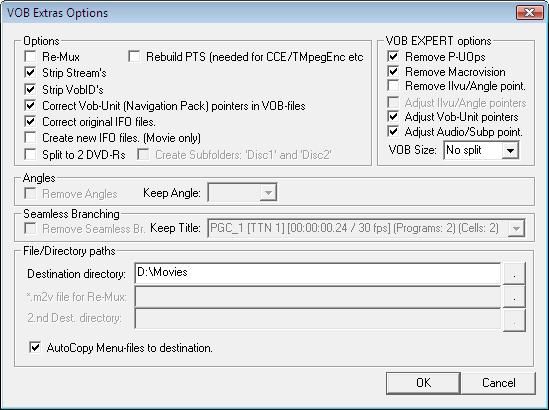
So I started IfoEdit which is useful for DVD authoring and fixing. I opened VTS_01_0.IFO in IfoEdit and clicked the VOB Extras button at the bottom of IfoEdit window. Specify the destination directory and click OK.


VOB Extras Options

In the next dialogs, choose the Audio track and the video stream you want to include in the output.

Sunday, April 4, 2010

Using MPlayer & Mencoder to Rip Blu-ray

Blu-ray discs require new and powerful CPU and graphics card to play high-definition movies on them. Although MPlayer is not yet suitable for playing Blu-ray discs, Mencoder can be used to rip Blu-ray discs in a more watchable format so that you can watch the movie on your average computer, laptop, iPod or iPad. I blogged previously on using Mencoder to rip DVD. Ripping Blu-ray isn't much different from ripping DVD.


Since Blu-ray discs are encrypted, you need to use DumpHD, Clown_BD or AnyDVD HD to dump the contents of your Blu-ray disc to your hard drive prior to ripping it. If you have Slysoft AnyDVD HD installed, right-click on the red fox icon on the right side of the taskbar, and choose Rip Video DVD to Harddisk from the menu. Then, specify the location where you want to save unencrypted Blu-ray contents. Note that you'll need more than 20GB free space.


After saving the huge amount of Blu-ray contents, open Command Prompt and type mplayer commands to play the Blu-ray movie. Here are some examples:


  • VC-1 video and AC-3 audio

    mplayer E:\BDMV\STREAM\00024.m2ts -vo directx:accel -vc ffvc1 -ao dsound -ac ffac3 -aid 4352 -framedrop

  • H.264 video and AC-3 audio

    mplayer E:\BDMV\STREAM\00024.m2ts -vo directx:accel -vc ffh264 -ao dsound -ac ffac3 -aid 4352 -framedrop

  • MPEG video and AC-3 audio

    mplayer E:\BDMV\STREAM\00024.m2ts -vo directx:accel -vc ffmpeg12 -ao dsound -ac ffac3 -aid 4352 -framedrop


To find available audio tracks, type the -identify option for mplayer to create a log file and look for AUDIO_ID strings.


mplayer 00024.m2ts -vo direct3d -vc ffvc1 -vf cropdetect -ss 180 -identify > log.txt


To encode the Blu-ray video with H.263 codec and resize it to 768x432 screen at the same time, the mencoder command would be like:


mencoder 00024.m2ts -o film.h264 -of rawvideo -oac copy -vf scale=768:432,harddup -ofps 24000/1001 -vc ffvc1 -ovc x264 -x264encopts bitrate=1200:subq=4:bframes=3:b_pyramid=normal:weight_b:pass=1:turbo=1

My second-pass mencoder command would be:


mencoder 00024.m2ts -o film.264 -of rawvideo -oac copy -vf scale=768:432,harddup -ofps 24000/1001 -vc ffvc1 -ovc x264 -x264encopts bitrate=1200:8x8dct:me=umh:frameref=4:bframes=3:b_pyramid=normal:weight_b:pass=2:trellis=1:psnr


I like to convert 5.1-channel AC3 audio to 6-channel AAC sound.


mplayer 00024.m2ts -vo null -vc null -aid 4352 -ao pcm:fast:file=audio-en-51.pcm -ac ffac3 -channels 6
faac --mpeg-vers 4 -q 108 -c 16800 -I 2,6 audio-en-51.pcm


Finally, let's put together a Matroska package from the video and audio


mkvmerge --title "Le Film" --default-language fr --chapters Chapters.txt -o le_film.mkv --track-name 0:"Video_Title" --default-duration 0:23.976fps --display-dimensions 0:768x432 --noaudio film.264 --default-track 0 --language 0:fr audio-fr-51.aac

Tuesday, March 23, 2010

Using Icedax and LAME to Rip Music CD

This short guide will help you rip a CD with a few command-line tools. Download the following files and put them in a folder, such as C:\WINDOWS.


Insert your music CD into the CD-ROM drive and open a command prompt (cmd.exe). First, run the following command to find your CD-ROM drive.


icedax -scanbus

The following command will display the contents of your CD:


icedax dev='D:' cddb=1 -J

The following command will save the second track as track2.wav:


icedax dev='D:' cddb=1 track=2 track2.wav

The following command will save each track as track##.wav:


for %i in (1 2 3 4 5 6 7 8 9 10) do icedax dev='D:' cddb=1 track=%i track%i.wav

For brief help on icedax command, type:


icedax -h


Using LAME to encode MP3 from .WAV files


LAME is a free MP3 encoder. I've written how to compile LAME in a previous post. The numerous options of LAME can be confusing to new users. After reading the output of lame --help, lame --preset help and lame --longhelp, I decided to go with one of the following presets and the -h option:


  • fm/radio/tape => 112kbps
  • hifi => 160kbps
  • cd => 192kbps
  • studio => 256kbps

The following is options related to ID3 tagging:


  ID3 tag options:
--tt <title> audio/song title (max 30 chars for version 1 tag)
--ta <artist> audio/song artist (max 30 chars for version 1 tag)
--tl <album> audio/song album (max 30 chars for version 1 tag)
--ty <year> audio/song year of issue (1 to 9999)
--tc <comment> user-defined text (max 30 chars for v1 tag, 28 for v1.1)
--tn <track[/total]> audio/song track number and (optionally) the total
number of tracks on the original recording. (track
and total each 1 to 255. just the track number
creates v1.1 tag, providing a total forces v2.0).
--tg <genre> audio/song genre (name or number in list)

Here's an example LAME command using my favorite preset hifi:


LAME --preset hifi -h --tt "House Party Remix" track3.wav PartyRemix.mp3

This converts track3.wav to PartyRemix.mp3 using ABR 160kbps hifi encoding.

Monday, February 15, 2010

Using Mencoder to Rip DVD into AVI/MKV/MP4 movies

Since I compiled MPlayer and Mencoder, I can use the programs for ripping DVD's as well as watching movies. Usually, I use SMPlayer frontend to play movies. Here I summarize how to make AVI, Matroska (.MKV) or MP4 files containing H.264 video and AAC audio.


First, download my Mplayer/Mencoder builds for Windows. MKVtoolnix is also needed.


Finding the Main DVD Title


In most cases, the first DVD title is the movie you want. Often, you can watch the feature title with the following command (Assuming D: is the DVD drive):


mplayer dvd://1 -dvd-device D:\ -ao dsound -vo directx:accel

For Windows Vista and Windows 7, direct3d is recommended as video output:


mplayer dvd://1 -dvd-device D:\ -ao dsound -vo direct3d

However, some DVD's have a feature title on a track other than the first. For such DVD's, trying each track can be tedious. The following command will help identify the main title on the DVD and also find information on available chapters and subtitles.


mplayer dvd://1 -dvd-device D:\ -identify -vf cropdetect > log.txt

Stop the movie after a moment (pressing q) and you'll get the log file log.txt. In the log.txt file, you'll find the main title to be the longest:


ID_DVD_TITLE_15_LENGTH=12.000
ID_DVD_TITLE_16_LENGTH=5513.533
ID_DVD_TITLE_17_LENGTH=0.500

Here, you find that the 16th title is the feature film.


Dumping the Feature Film from DVD


You can use MPlayer to save a DVD title on hard drive:


mplayer dvd://1 -dvd-device D: -v -dumpstream -dumpfile movie.vob

Now you can put aside your DVD. From now on, you can work with the VOB file saved on your hard drive. Alternatively, you can use VLC to dump a DVD title.


Finding Crop Values


If your DVD is widescreen (not fullscreen), look for the crop values from the log.txt file obtained above:


[CROP] Crop area: X: 0..719  Y: 60..417  (-vf crop=720:352:0:64).

In this example, the crop value will be 720:352:0:64. Note that the first two values (here 720 and 352) have to be divisible by 16.


Encoding DVD to an AVI file containing H.264 video and AAC audio


The following command actually creates an AVI file encoded in H.264:


mencoder dvd://1 -dvd-device E:\ -o movie.avi -oac faac -faacopts object=2:br=128 -vf pp=lb,filmdint,crop=704:464:6:10,scale=720:480,harddup -sws 8 -ofps 24000/1001 -ovc x264 -x264encopts crf=20:8x8dct:frameref=4:bframes=3:b_pyramid=normal:weight_b

The -vf scale= filter is used to resize the video stream. The output refresh rate will be 24000/1001=23.976 frames per second. If you're concerned with encoding speed, set bframes=2.


Encoding DVD to an AVI file containing DIVX video and MP3 audio


The following example shows how to create an AVI file encoded in MPEG-4. In the example below, the encoding bitrate is moderately 768 kilobits per second. The crop filter is only for widescreen titles.:


set VENCOPTS=vcodec=mpeg4:vbitrate=896:vmax_b_frames=2:mbd=2:v4mv:last_pred=3:trell:cbp
mencoder dvd://1 -dvd-device E:\ -o NUL -nosound -vf yadif=0,crop=704:464:6:10,scale=720:480,harddup -ovc lavc -lavcopts %VENCOPTS%:autoaspect:vpass=1
mencoder dvd://1 -dvd-device E:\ -o movie.avi -aid 128 -oac mp3lame -lameopts preset=128,aq=2,vol=8 -vf yadif=0,crop=704:464:6:10,scale=720:480 -ovc lavc -lavcopts %VENCOPTS%:autoaspect:vpass=2


Encoding Additional Sound Tracks


The following example command encodes the English sound track (aid 128) to +8dB-amplified 96kbps MP3:


mencoder dvd://1 -dvd-device D:\ -o audio-en.mp3 -of rawaudio -ovc frameno -aid 128 -oac mp3lame -lameopts preset=96,aq=2,vol=8

The following example encodes an AAC file:


mencoder dvd://1 -dvd-device E: -o audio-en.aac -of rawaudio -ovc frameno -aid 128 -oac faac -faacopts object=2:br=128

Another way to encode DVD audio is to save the sound as .WAV file and encode it with LAME MP3 encoder. First, extract the audio as .WAV file. Then, encode the .WAV file to MP3.


mplayer dvd://1 -dvd-device D:\ -vo null -vc null -aid 128 -ao pcm:fast:file=audio-en.wav
lame --preset tape -h audio-en.wav audio-en.mp3

Later, you can mux AVI:


mencoder.exe -ffourcc DIVX -oac copy -ovc copy -o final_movie.avi -audiofile audio-en.mp3 movie.avi


Editing Chapters.txt


In the log.txt file, you'll find a section that looks like:


CHAPTERS: 00:00:00,00:03:37,00:05:42,00:09:12,00:11:24,00:16:18,00:20:21,00:22:56,00:26:14,00:29:31,00:32:26,00:35:13,00:38:13,00:42:14,00:43:47,00:48:25,00:51:45,00:53:52,00:57:32,01:00:04,01:05:44,01:08:29,01:10:45,01:13:53,01:18:21,01:21:10,01:24:45,01:28:53,01:31:32,01:33:36,01:35:36,01:38:57,01:41:44,

With a text editor, create a text file chapters.txt and put something like:


CHAPTER01=00:00:00.00
CHAPTER01NAME=My name is John Connor.
CHAPTER02=00:03:37.01
CHAPTER02NAME=Weight of the future.
CHAPTER03=00:05:42.16
CHAPTER03NAME=T-X arrives.


Extracting Subtitles from DVD


If you look at the log.txt file gotten above, you'll find information on subtitles.


subtitle ( sid ): 0 language: en
ID_SUBTITLE_ID=0
ID_SID_0_LANG=en
subtitle ( sid ): 1 language: fr
ID_SUBTITLE_ID=1
ID_SID_1_LANG=fr
subtitle ( sid ): 2 language: es
ID_SUBTITLE_ID=2
ID_SID_2_LANG=es

To extract DVD subtitles, I ran the following command in the Command Prompt:


mencoder movie.vob -nosound -ovc frameno -o nul -sid 0 -vobsubout subtitle-en -vobsuboutindex 0 -vobsuboutid en

mencoder movie.vob -nosound -ovc frameno -o nul -sid 1 -vobsubout subtitle-fr -vobsuboutindex 1 -vobsuboutid fr

mencoder movie.vob -nosound -ovc frameno -o nul -sid 2 -vobsubout subtitle-es -vobsuboutindex 2 -vobsuboutid es

The sid and vobsuboutindex number can be obtained from the log.txt file above. Do this for each subtitle but remember to name each output file uniquely.


Creating a Matroska file with Mkvmerge


Let's put together the video, audio and subtitles into a Matroska package. For this task, a command-line tool mkvmerge from MkvToolNix project is used.


mkvmerge
--title "Holiday Trip" --chapters CHAPTERS.TXT -o my_movie.mkv
--aspect-ratio 0:4/3
--track-name 1:"English AAC audio" --default-track 1 --language 1:en movie.avi
--track-name 0:"French AAC audio" --language 0:fr audio-fr-51.aac
--language 0:en en.idx --language 0:fr fr.idx --language 0:es es.idx

If there's a problem with audio/video synchronization, use the --sync option with mkvmerge. For example, the following command makes the audio track start at 13 seconds after the video starts:


mkvmerge -o movie.mkv video.264 --sync 0:13000 audio.mp3


Creating .MP4 files


Use MP4Box to create a .MP4 movie.


MP4Box -add video.h264 -add audio-en.mp3:lang=eng -add audio-fr.mp3:lang=fre -add en.idx -add fr.idx -add es.idx -fps 23.976 -chap CHAPTERS.TXT movie.mp4


Related Links


Saturday, September 19, 2009

Linux: Building RipOff 0.8.3

I am building RipOff which is a GTK+ application that rips Audio CD's. RipOff depends on GTK+ 2.4 and up, libcdio, libcddb, libogg, libvorbis, Lame and FLAC. Let's first build RipOff dependencies:


  1. Install the following packages:


    • libcddb2-dev
    • libflac-dev
    • libgtk2.0-dev
    • libogg-dev
    • libvorbis-dev
    • libxml2-dev

  2. RipOff 0.8.3 requires glib 2.8 and up. If the version of glib is too old, you have to build glib yourself.

    ./configure --prefix=/usr --disable-shared --disable-debug
    make
    make install

  3. Download the libcdio source and compile it:

    tar xzvf libcdio-0.82.tar.gz
    cd libcdio-0.82
    ./configure --prefix=/usr --disable-shared
    make
    make install

  4. If libcddb2-dev package is not available, download the libcddb source and compile libcddb:
    tar xzvf Downloads/libcddb-1.3.2.tar.gz
    cd libcddb-1.3.2/
    ./configure --prefix=/usr --disable-shared
    make
    make install

  5. Compile LAME as follows:


    ./configure --prefix=/usr --disable-shared
    make
    make install

  6. Build RipOff as follows:


    ./configure --prefix=/usr
    make
    make install

    The following files are installed by RipOff:


    /usr/bin/ripoff
    /usr/include/ripoff/RipOff.h
    /usr/include/ripoff/RipOffConfigFile.h
    /usr/include/ripoff/RipOffPluginRawInterface.h
    /usr/include/ripoff/RipOffTrack.h
    /usr/include/ripoff/config.h
    /usr/lib/libripoff.a
    /usr/lib/libripoff.la
    /usr/lib/libripoff.so
    /usr/lib/libripoff.so.0
    /usr/lib/libripoff.so.0.0.0
    /usr/lib/ripoff/plugins/libflac.so
    /usr/lib/ripoff/plugins/liblame.so
    /usr/lib/ripoff/plugins/libvorbis.so
    /usr/lib/ripoff/plugins/libwav.so
    /usr/share/applications/ripoff.desktop
    /usr/share/pixmaps/ripoff.xpm

Sunday, August 16, 2009

Mplayer & Mencoder: Extracting AC3 audio from DVD

Extracting AC3 audio from a DVD is a smart thing to do when ripping DVD's. First of all, it separates the audio part of the task and lets the user focus on the video encoding part. Secondly, it helps the user to make decision about the bitrate of the video depending on the size of output files. Here's my mencoder command to extract AC3 data from a DVD.


mencoder.exe dvd://1 -dvd-device D: -aid 128 -ss 4 -o war.ac3 -of rawaudio -oac copy -ovc frameno

Alternatively, I can use MPlayer to achieve the same thing.


mplayer movie.vob -aid 128 -dumpaudio -dumpfile audio-en-51.ac3

mplayer movie.vob -aid 129 -dumpaudio -dumpfile audio-fr-51.ac3

Oddly, the output file war.ac3 plays fine with MPlayer, but can't be played with VLC player. Is it because VLC player is inferior to MPlayer?


When Mencoder finished ripping DVD audio, it displayed the following:


Recommended video bitrate for 650MB CD: 434

Recommended video bitrate for 700MB CD: 502

Recommended video bitrate for 800MB CD: 637

Recommended video bitrate for 2 x 650MB CD: 1316

Recommended video bitrate for 2 x 700MB CD: 1451

Recommended video bitrate for 2 x 800MB CD: 1723


Video stream: 0.767 kbit/s (95 B/s) size: 593132 bytes 6183.043 secs 148295 frames


Audio stream: 448.000 kbit/s (55999 B/s) size: 345966435 bytes 6177.972 secs

This information is helpful in deciding the bitrate of the video.


Extracting Video from DVD


To extract only video from a DVD, I used the following command:


mencoder dvd://1 -dvd-device D: -o war.264 -of rawvideo -vf filmdint -ofps 24000/1001 -nosound -ovc x264 -x264encopts bitrate=720:vbv_maxrate=1000:vbv_bufsize=2000:direct_pred=auto:8x8dct:me=umh:trellis=1:pass=1:turbo=2 -ss 4

Monday, June 8, 2009

Compiling Mencoder for Windows

Mencoder is a command-line tool for creating multimedia files. It allows you to convert video from one format to another. When used together with OGMRip, mencoder helps you to rip DVD into a video file that's convenient to watch on computers. Note that the instruction herein explains how to compile Mencoder for the Windows platform, not Linux.


MinGW must be installed first (Look here for how). Once you have MinGW, launch MSYS (rxvt) from the Start menu and type the following commands.


  1. PNG and JPEG


    PNG depends on zlib compression library. Download the zlib source from zlib.net and compile as follows:

    tar xzvf zlib-1.2.3.tar.gz
    cd zlib-1.2.3
    ./configure --prefix=/mingw
    make
    make install

    Now get the PNG library here and compile it as follows:

    tar xzvf libpng-1.2.34.tar.gz
    cd libpng-1.2.34/
    ./configure --prefix=/mingw --disable-shared
    make
    make install

    Download the source for JPEG library, compile and install JPEG as follows:

    tar xzvf jpegsrc.v7.tar.gz
    cd jpeg-7
    ./configure --prefix=/mingw
    make
    make install


  2. libdca Library


    Download the libdca source from videolan.org and compile it like this:


    tar xjvf libdca-0.0.5.tar.bz2
    cd libdca-0.0.5
    ./configure --prefix=/mingw
    make
    make install


  3. OGG, Vorbis and Theora


    The source for these libraries can be obtained from xiph.org. Compile them like this:

    ./configure --prefix=/mingw --disable-shared
    make
    make install


  4. Libcdio Library


    Download the libcdio source from here. Compile and install libcdio as follows:

    tar xzvf libcdio-0.81.tar.gz
    cd libcdio-0.81
    ./configure --prefix=/mingw --disable-shared
    make
    make install


  5. Live555 library


    The Live555 library is used to decode streaming media. Get the live555 source from here and compile it as follows:

    cd /mingw/lib
    tar xzvf live.2009.07.28.tar.gz
    cd live
    ./genMakefiles mingw
    make


  6. LAME


    LAME is an MP3 encoder. This library allows Mencoder to encode DVD sound into MP3 audio. Download LAME from lame.sf.net and compile it as follows.


    ./configure --prefix=/mingw --enable-expopt=full

    make

    make install


  7. TwoLame


    TwoLAME is an MP2 audio encoder. Get the source from twolame.org and compile it:

    ./configure --prefix=/mingw CPPFLAGS='-DLIBTWOLAME_STATIC'
    make
    make install


  8. XviD


    In case you didn't know, XviD is the most popular video encoder used in creating movie files found on the P2P networks. With this library, mencoder can rip a DVD into XviD video. Get the XviD source from xvid.org and compile as follows:


    tar xzvf xvidcore-1.2.2.tar.gz

    cd xvidcore/build/generic

    ./configure --prefix=/mingw

    make

    make install

    In addition, change to the /mingw/bin directory and copy xvidcore.a to libxvidcore.a.


    cd /mingw/lib

    cp xvidcore.a libxvidcore.a


  9. FAAC


    FAAC is an MPEG-4 AAC audio encoder. Get the source (faac-1.28.tar.gz) and unpack the package. Then, edit Makefile.am:

    SUBDIRS = include libfaac

    Also, edit the line beginning with AC_OUTPUT in the file configure.in:

    AC_OUTPUT(libfaac/Makefile include/Makefile Makefile)

    Then, compile FAAC like this

    sh bootstrap
    ./configure --prefix=/mingw --enable-static --disable-shared
    make
    make install


  10. x264


    x264 is yet another good video encoder. x264 requires YASM to build an optimized executable. So get yasm and save it as /mingw/bin/yasm.exe. Then, compile x264 like this:


    sh configure --prefix=/mingw --extra-cflags="-DX264_VERSION=20090608"

    make

    make install


  11. Compiling Mencoder


    Now you're ready to compile mencoder. Download the MPlayer source snapshot from mplayerhq.hu and unpack it. Then, type the following commands into the MSYS window to produce the executable mencoder.exe.


    CPPFLAGS='-DHAVE_INT32_T -DLIBTWOLAME_STATIC'./configure --prefix=/mingw --enable-runtime-cpudetection --enable-static --enable-theora --yasm=/mingw/bin/yasm

    make mencoder

    strip *.exe

    mv -iv mencoder.exe /c/Windows

    This produces a static executable mencoder.exe and copies it into the C:\WINDOWS folder.


If you'd like to try my mencoder build, download it from here. Its filename is MPlayer-svn-r30521-snapshot-3.4.5.zip.

Thursday, June 4, 2009

Building FAAC, XviD, GPAC and OGMRip


After building MPlayer and Mencoder for Linux, the last fun part is to build OGMRip so that we can rip movies into AVI or MP4 files as found on the P2P networks. OGMRip is a graphical movie convertor that uses MPlayer and Mencoder to convert a movie into another format.


Building FAAC


First, let's compile FAAC as it is needed to encode AAC audio. You need a g++ compiler, autoconf, automake and tcl-dev to compile FAAC, following a typical procedure:


./bootstrap
./configure --build=i586-pc-linux-gnu --prefix=/usr --with-mp4v2
make
make install

The bootstrap command produces the configure script and Makefile necessary for the build procedure. The following set of files are generated upon compilation of FAAC:


/usr/bin/faac
/usr/include/faac.h
/usr/include/faaccfg.h
/usr/lib/libfaac.a
/usr/lib/libfaac.la
/usr/lib/libfaac.so
/usr/lib/libfaac.so.0
/usr/lib/libfaac.so.0.0.0
/usr/man/man1/faac.1.gz


Building XviD library


Now, let's build the XviD library. XviD is a popular video codec. A typical build procedure for XviD looks like this:


tar xzf xvidcore-1.2.2.tar.gz
cd xvidcore/build/generic
./configure --build=i586-pc-linux-gnu --prefix=/usr
make
make install

Upon successful compilation, the following set of files are installed on system.


/usr/lib/libxvidcore.a
/usr/include/xvid.h
/usr/lib/libxvidcore.so
/usr/lib/libxvidcore.so.4
/usr/lib/libxvidcore.so.4.1


Building GPAC


Next, let's compile GPAC which is an open-source MPEG-4 encoder. Before compiling GPAC, install the following developer libraries, most of which are optional:


liba52-0.7.4-dev
libasound2-dev
libavformat-dev
libfaad-dev
libmad0-dev
libmozjs-dev
libogg-dev
libopenjpeg-dev
libssl-dev
libtheora-dev
libvorbis-dev
libwxgtk2.8-0
libxvidcore4

Then, compile GPAC as follows:


./configure --prefix=/usr/local --cpu=i586 --enable-pic --strip --use-ffmpeg=local --use-js=local

make

make install

When GPAC is compiled and installed successfully, the following set of files are generated on the system:


/usr/bin/MP4Box
/usr/bin/MP4Client
/usr/bin/Osmo4
/usr/lib/gpac/gm_aac_in.so
/usr/lib/gpac/gm_ac3_in.so
/usr/lib/gpac/gm_alsa.so
/usr/lib/gpac/gm_bifs_dec.so
/usr/lib/gpac/gm_ctx_load.so
/usr/lib/gpac/gm_dummy_in.so
/usr/lib/gpac/gm_ffmpeg_in.so
/usr/lib/gpac/gm_ft_font.so
/usr/lib/gpac/gm_gpac_js.so
/usr/lib/gpac/gm_img_in.so
/usr/lib/gpac/gm_ismacryp.so
/usr/lib/gpac/gm_isom_in.so
/usr/lib/gpac/gm_laser_dec.so
/usr/lib/gpac/gm_mp3_in.so
/usr/lib/gpac/gm_mpegts_in.so
/usr/lib/gpac/gm_odf_dec.so
/usr/lib/gpac/gm_ogg_xiph.so
/usr/lib/gpac/gm_oss_audio.so
/usr/lib/gpac/gm_raw_out.so
/usr/lib/gpac/gm_rtp_in.so
/usr/lib/gpac/gm_saf_in.so
/usr/lib/gpac/gm_soft_raster.so
/usr/lib/gpac/gm_svg_in.so
/usr/lib/gpac/gm_timedtext.so
/usr/lib/gpac/gm_x11_out.so
/usr/lib/gpac/gm_xvid_dec.so
/usr/lib/libgpac-0.4.5.so
/usr/lib/libgpac.so
/usr/man/man1/gpac.1.gz
/usr/man/man1/mp4box.1.gz
/usr/man/man1/mp4client.1.gz
/usr/share/gpac/gpac.mp4

If you encounter the following error during compilation:


scenegraph/vrml_smjs.c:41:20: error: jsapi.h: No such file or directory

make symlinks to jsapi.h and compile again as follows:


cd include/

ln -s ../extra_lib/include/js/* .

cd ..

./configure --prefix=/usr --cpu=i586 --enable-pic --strip --use-ffmpeg=local --use-js=local --extra-cflags=-DXP_UNIX

make

make install

Some programs require the gpac static library libgpac_static.a. This file is not installed by default. However, you can copy it manually:


cp bin/gcc/libgpac_static.a usr/lib


Building OGMRip


Finally, let's build OGMRip. First, make sure you have the following developer libraries:


libdbus-glib-1-dev
libdvdread-dev
libenca-dev
libenchant-dev
libgconf2-dev
libglade2-dev
libgtk2.0-dev
libhal-dev
libnotify-dev
libstdc++6-4.4-dev
libtheora-dev

Optionally, install intltool, gtk-doc and xsltproc for internationalization and documentation. Then, build OGMRip as follows:


./configure --prefix=/usr/local --build=i586-pc-linux-gnu --sysconfdir=/etc --enable-gtk-doc --with-ocr=auto

make

make install

After OGMRip is compiled and installed successfully, the following set of files are generated on system:


/etc/gconf/schemas/ogmrip.schemas
/usr/bin/avibox
/usr/bin/dvdcpy
/usr/bin/ogmrip
/usr/bin/subp2pgm
/usr/bin/subp2png
/usr/bin/subp2tiff
/usr/bin/subptools
/usr/bin/theoraenc
/usr/include/ogmdvd/
/usr/include/ogmjob/
/usr/include/ogmrip/
/usr/lib/libogmdvd-gtk.a
/usr/lib/libogmdvd-gtk.la
/usr/lib/libogmdvd-gtk.so
/usr/lib/libogmdvd-gtk.so.0
/usr/lib/libogmdvd-gtk.so.0.0.0
/usr/lib/libogmdvd.a
/usr/lib/libogmdvd.la
/usr/lib/libogmdvd.so
/usr/lib/libogmdvd.so.0
/usr/lib/libogmdvd.so.0.0.0
/usr/lib/libogmjob.a
/usr/lib/libogmjob.la
/usr/lib/libogmjob.so
/usr/lib/libogmjob.so.0
/usr/lib/libogmjob.so.0.0.0
/usr/lib/libogmrip-gtk.a
/usr/lib/libogmrip-gtk.la
/usr/lib/libogmrip-gtk.so
/usr/lib/libogmrip-gtk.so.0
/usr/lib/libogmrip-gtk.so.0.0.0
/usr/lib/libogmrip-lavc.a
/usr/lib/libogmrip-lavc.la
/usr/lib/libogmrip-lavc.so
/usr/lib/libogmrip-lavc.so.0
/usr/lib/libogmrip-lavc.so.0.0.0
/usr/lib/libogmrip-mplayer.a
/usr/lib/libogmrip-mplayer.la
/usr/lib/libogmrip-mplayer.so
/usr/lib/libogmrip-mplayer.so.0
/usr/lib/libogmrip-mplayer.so.0.0.0
/usr/lib/libogmrip.a
/usr/lib/libogmrip.la
/usr/lib/libogmrip.so
/usr/lib/libogmrip.so.0
/usr/lib/libogmrip.so.0.0.0
/usr/lib/ogmrip/
/usr/lib/pkgconfig/ogmdvd-gtk.pc
/usr/lib/pkgconfig/ogmdvd.pc
/usr/lib/pkgconfig/ogmjob.pc
/usr/lib/pkgconfig/ogmrip-gtk.pc
/usr/lib/pkgconfig/ogmrip.pc
/usr/share/applications/ogmrip.desktop
/usr/share/doc/ogmrip/
/usr/share/gtk-doc/html/ogmdvd-gtk
/usr/share/gtk-doc/html/ogmdvd/
/usr/share/gtk-doc/html/ogmjob/
/usr/share/gtk-doc/html/ogmrip-gtk/
/usr/share/gtk-doc/html/ogmrip/
/usr/share/locale/ca/LC_MESSAGES/ogmrip.mo
/usr/share/locale/cs/LC_MESSAGES/ogmrip.mo
/usr/share/locale/de/LC_MESSAGES/ogmrip.mo
/usr/share/locale/fr/LC_MESSAGES/ogmrip.mo
/usr/share/locale/sv/LC_MESSAGES/ogmrip.mo
/usr/share/man/man1/avibox.1.gz
/usr/share/man/man1/dvdcpy.1.gz
/usr/share/man/man1/subp2pgm.1.gz
/usr/share/man/man1/subptools.1.gz
/usr/share/ogmrip/
/usr/share/pixmaps/ogmrip.png

Now that you've compiled OGMRip, go ahead and test it. Be sure that mplayer, mencoder, ogmtools, vorbis-tools, gpac, faac, lame, mkvtoolnix and gocr (or ocrad) are installed, also.


OGMRip Video Convertor Options

About This Blog

KBlog logo This blog seeks to provide a collection of interesting pictures found on the Web. Thanks for visiting the blog and posting your comments.

© Contents by KBlog

© Blogger template by Emporium Digital 2008

Followers

Total Pageviews

Powered By Blogger